Kid Gloves: Linux Edition

Nathan Edwards, in a Verge article titled “I replaced Windows with Linux and everything’s going great1“, writes:

First challenge: My mouse buttons don’t work. I can move the cursor, but can’t click on anything. I try plugging in a mouse (without unplugging the first one), same deal. Not a major issue; I can get around fine with just the keyboard.

“Not a major issue.”

As a computer nerd, I get the appeal of trying an alternative OS and I’m sure Linux in particular has gotten better over the years, but framing replacing Windows with Linux as basically frictionless does a disservice to readers when, under most circumstances and for most people, it’s anything but. This is a perfect example of the kind of “kid gloves” coverage I’ve criticized The Verge for previously. The site goes easy on some project or product out of a bias toward novelty or a fear of punching down. I’m not arguing Nathan should be particularly harsh toward CachyOS, especially since this wasn’t a review. He absolutely should write about the fun and benefits of trying an alternative OS, but he should also address the downsides in a way that doesn’t sugar coat them.


  1. I’ve considered the possibility that the title is sarcastic and that the whole post is satire, but I really don’t think it is. Edwards’s other posts don’t read to me as satire and the conclusion to this post seems quite earnest: “I’m sure I’ll run into plenty of fun problems soon enough. But the first few days have been great.” 
Fine! Have Your Windows in iPadOS, but Remember This House Was Built on Apps!

Anil Dash recently made an observation on Mastodon that included a screenshot of an iPadOS 26 setup screen with a prompt showing three options: Full Screen Apps, Windowed Apps, and Stage Manager. While each option had a description, Stage Manager curiously was the only one that ended with “more…” As someone who has written quite a bit about Stage Manager’s lacking lexicon, that “more” was like catnip. I had to see what exactly the “more” linked to. After all, it had been over three years and iPadOS versions since I was pissing and moaning about the lack of coherent terminology, and maybe this “more” would bring me somewhere full of nouns that aptly describe the pieces that make up a Stage Manager. I didn’t have an iPad anymore, but had surmised and later confirmed that “more” linked to the “Organize windows with Stage Manager on iPad” article in the iPad User Guide.

Having now read that article, I can now confirm that the situation with Stage Manager’s terminology remains a complete mess, but the “Organize apps into groups in Stage Manager” in particular section highlights a more fundamental lexical problem I hadn’t fully recognized in my earlier writing: a lack of distinction between apps and windows.

Organize apps into groups in Stage Manager

You can create groups of windows for specific tasks or projects by dragging app windows from the recent apps list into the center of the screen. You can also drag app icons from the Dock into the center of the screen to add them to a group.

You can return a window to the recent apps list by dragging it to the left. If you minimize a window in an app group, the app window is removed from the group and returned to the recent apps list.

Right from the get-go, we have a header that begins with “organize apps in groups” followed immediately by a sentence that reads “you can create groups of windows.” That’s bad, but it doesn’t hold a candle to that section’s pièce de résistance of incoherence that is its last sentence.

If you minimize a window in an app group, the app window is removed from the group and returned to the recent apps list.

While the writing could be improved, the greatest technical writers in the world could only do so much when Apple itself seemingly can’t agree on whether the things Stage Manager manages are “apps” or “windows” (or comedy option three: “app windows”.) The problem extends beyond Stage Manager into the new Windowed Apps mode in iPadOS 26, which has a single list of instructions to “Resize a window”, “Move a window”, and “Manage an app window”. Why can’t they all just use “window”?

My guess as to why this section incoherently conflates apps and windows is related to Apple’s historical reluctance to embrace anything deemed too computer-y in iPadOS prior to Stage Manager. The reasoning goes like this: people love iPads because they not like computers and computers have windows, ergo the iPad can’t have windows. The iOS 9 press release when Apple first introduced iPad multitasking with split view and slide over does not contain the word “window” nor any derivation of it. This “windows are bad” mentality wasn’t just coming from Apple. It was also largely echoed by iPad enthusiasts of the time. Here’s an excerpt from Federico Viticci’s iOS 9 review of the then new mechanisms:

Split View isn’t like window management on a desktop: Apple wanted to eschew the complexities of traditional PC multitasking and windowing systems, and by rethinking the entire concept around size classes and direct touch manipulation, they’ve largely achieved this goal. They have created new complexities specific to iOS and touch, but it’s undeniable that Slide Over and Split View are far from the annoyances inherent to window management on OS X. The iPad is fighting to be a computer and Split View epitomizes this desire, but it doesn’t want to inherit the worst parts of multitasking from desktop computers.

By the time multitasking was revamped for iPadOS 15, the word “windows” could not be avoided. It was however mentioned only once.

Users now have quick access to the Home Screen when using Split View, and using the new shelf, they can also multitask with apps that have multiple windows like Safari and Pages.

This is a great example of why it’s so foolish to avoid the word “windows”. Not only is “apps that have multiple windows” easy and accurate, it also doesn’t require any additional explanation because anyone interested in multitasking on iPadOS already knows what a window is. I’m not arguing Apple should always use “windows” in place of “apps”. No one would ever need to distinguish between apps and hypothetical full-screen windows in iOS because they’d be functionally one in the same. The most recent iPad OS 18 documentation for Split View actually does a good job delineating when to use one verses the other.

On iPad, you can work with multiple apps at the same time. Open two different apps, or two windows from the same app, by splitting the screen into resizable views.

Using “apps” is fine when apps are one-to-one with windows. I’d argue the same is colloquially true even in macOS. “Go to Safari” is a clear instruction when there is only one Safari window open. That said, “windows” becomes unavoidable the instant an app has more than one.

This brings me back to that paragraph from Stage Manager’s documentation. Unlike Split-View, Stage Manager is very clearly a window manager. Every app is represented by one or multiple windows. Here’s the same documentation with a few changes1 that embrace this reality.

Organize windows into groups in Stage Manager

You can create groups of windows from multiple apps for specific tasks or projects by dragging them from the recents list into the center of the screen. You can also add windows to a group by dragging app icons from the Dock into the center of the screen.

You can return a window to the recents list by dragging it to the left. If you minimize a window in any group, the window is removed from that group and returned to the recents list.

While far from perfect (that second paragraph in particular), describing how Stage Manager groups windows is far more coherent and accurate because that’s what Stage Manager actually does. Stage Manager still needs a better lexicon across the board, but a good start would be to finally let windows be windows.


  1. The edits I made fall into one of three buckets: I replaced “apps” with “windows”, replaced “Recent Apps List” with “Recents List” (it’s still not a great term, but it’ll do for the sake of argument), and reiterated that windows belong to apps. 
A Gastric Band Approach to Desktop Clutter

Matt Birchler recently did a nice YouTube video praising the open source tile manager AeroSpace. There is a lot to love about AeroSpace right from the get-go. While I definitely wouldn’t call it Mac-assed, since AeroSpace is for very advanced users and developers who are comfortable with text configuration files, my sense is that AeroSpace is made by people who care deeply about the Mac. Part of this is how Nikita Bobko and others supporting the project have deeply considered how AeroSpace works. Unlike Stage Manager, AeroSpace has a clearly defined lexicon which is deployed across copious documentation. Like Stage Manager tries to ease window management with more automatic windowing, AeroSpace tries to ease tile management with more automatic tiling. Users don’t need to manually arrange windows into a grid with AeroSpace. It just happens. From there users can configure and tweak how windows are automatically tiled to their heart’s content.

The idea of composing sets of apps into custom workspaces is particularly appealing to me. I find super apps (apps that are effectively multiple apps in one) mildly off-putting. Most IDEs are super apps for everything related to software development. They contain version control managers, terminals, text editors, and so on. While many IDEs do all of these things reasonably well, their super app paradigm is effectively a usability barrier to using other apps that might otherwise be better. Instead of using Visual Studio Code, for example, I could imagine a world where I have a coding workspace consisting of BBEdit, Terminal, and Git Tower. The added benefit of this sort of multi-app workspace is that I could still use the individual apps a la carte or mix in other apps as needed.

While I’m sure many people started using tile managers to build custom workspaces, I suspect many more turned to them as a way to address desktop clutter. I’ve written a couple of times already about the modern day problem of desktop clutter. Thanks to an abundance of resources (memory, processor speed, etc…), people can open more and more stuff (apps, windows, tabs) without slowing their computer. Because their computer never slows, there is no intrinsic mechanism that forces users to ever close anything and so their more and more stuff stays open until they get overwhelmed. Tile managers reduce desktop clutter by discouraging or preventing overlapping windows, which physically constrains the number of windows that can be visibly open at a given moment.

Maximally constrained user interfaces are impossible to clutter. Lots of people were drawn to the original iPad specifically because it really was just a big iPhone and they loved their iPhone in part because it was too simple to mess up. I get it. I prefer small hotel rooms when traveling solo because larger ones just give me more space to lose track of my stuff, but small hotel rooms are not without trade-offs. The tiny room at the boutique hotel I stay at when visiting my employer’s New York office isn’t really suitable for anything beyond sleeping and hygiene. Even working on a laptop for any extended period of time would be a challenge. A hotel room that is too small to do work is great until you want to do work. An iPad that doesn’t feel like a computer is also great until you want to do computer-y things with it.

Desktop tiling managers are definitely not maximally constrained like the original iPad nor are they even anywhere near as constrained as previous versions of iPadOS with split view and slide over1, but they are, by their very nature, constrained. Beyond physically constraining the number of windows visible at a given time, tiling managers also constrain the shapes of those windows. I wrote2 about this when reviewing Stage Manager on macOS Ventura:

Personally, I’ve found gridded UIs to be lacking ever since I first saw Windows 1.0. When using grids, apps’ sizes. and more importantly their aspect ratios, are dictated by other windows that are on screen. Say you want to work across a spreadsheet, word processor, and a browser. Not only do all of these apps benefit from a large amount of screen real estate, both the word processor and browser need a minimum amount of size just to be entirely visible. In a gridded UI, some or all apps would have to compromise on space and you would have to scroll constantly within each app to see the entirety of what’s being worked on.

People who use tile managers undoubtedly have strategies for mitigating this inelegance. Tiles don’t have to be even subdivisions of a given display so you can, for example, adjust the width of a word processing tile to that of its document. AeroSpace in particular seems to offer lots of tools for technical users to hone their tiled workspaces. That said, the very nature of tiling according to the size of the display limits what adjustments are even possible.

Part of me feels bad that I used AeroSpace as the jumping off point to argue against tile managers. Its makers clearly have put a praiseworthy of thought and care into how it works, but it was seeing such a well considered tile manager that solidified my thinking. AeroSpace is the most appealing tile manager I’ve seen on the Mac and while I’m certain there are plenty of workflows where AeroSpace shines, being physically constrained by an always on tile manager that dictated the number and shape of open windows would feel like a gastric band to me. Rather than wholly automatic systems like AeroSpace or Stage Manager, the best solution to desktop clutter for me remains to regularly close the stuff I open, that’s only just a little automatic.


  1. Some have lamented that iPadOS 26 new windows-based multitasking is too computer-y and while maybe Apple could have somehow continued to support the old style split-screen and slide over alongside it, I don’t see how anyone could make iPadOS meaningfully less constrained using only split-screen and slide over. 
  2. I used the term “gridded UIs” in my Stage Manager review to encompass not just tile managers, but also iPadOS style split screens. In hindsight, “tile manager” is a better term that would have worked just as well. 
Introducing MacMoji Stickers

Disguised Face MacMoji

In olden days computers had just two emotions. They either happily worked as expected or were too sad to boot. Computers today have a range of emotions, but tragically have no way to express them. That’s why our scientists developed MacMoji using the latest in sticker technology, so your favorite computers can finally convey exactly how they feel.

As a parent working a full time job, I regularly seek out creative outlets that I can manage in my limited spare time. MacMoji started out as one such outlet. The idea of combining more modern emoji with the classic startup icon was too fun to resist. I could gradually illustrate one or two, share them on the Relay Member Discord, and iterate as needed based on feedback. At some point, a Relay member suggested I turn these illustrations into an Apple Messages sticker pack. The idea was such a no brainer that I did just that…eventually. You can now buy the Sticker pack for just $0.99 over at the App Store. You’ll find the F.A.Q. over here, which addresses why these stickers aren’t available in the EU. My thanks to the Relay member community for their feedback and encouragement in creating these stickers.

Thank Fucking God Steve Jobs Took Over the Macintosh Project

There are two arguments some use to try and diminish Steve Jobs contribution to the Macintosh, and by extension all of desktop computing. The first and by far most common is to say that Jobs merely copied what he saw at Xerox Parc. While there is absolutely no doubt both the Macintosh and NeXT grew out of what Steve saw, he even said as much, the system at Parc was akin to an automobile before the Model T. It was unrefined, complicated, and not user friendly. This is why Microsoft copied mostly from the Macintosh (and later NeXTStep) rather than anything from Xerox to make Windows.

The second and more obscure argument is that Jobs merely took over the Macintosh project from Jef Raskin, the suggestion being that Raskin invented the computer and that Jobs swooped in to take credit at the last second. What that argument omits is that Raskin’s vision for the Macintosh was very different than what shipped. How different? Raskin didn’t want a mouse. Here’s Andy Hertzfeld over at the venerable Folklore.org:

He was dead set against the mouse as well, preferring dedicated meta-keys to do the pointing. He became increasingly alienated from the team, eventually leaving entirely in the summer of 1981, when we were still just getting started, and the final product [utilized] very few of the ideas in the Book of Macintosh.

We know this is true not just because of Hertzfeld’s own account, but also because Raskin did eventually get to release his computer in 1987, the Canon Cat. Sure enough, it indeed didn’t use mouse and instead relied on what were called “leap keys”. Cameron Kaiser recently went into detail of how the Cat worked.

Getting around with the Cat requires knowing which keys do what, though once you’ve learned that, they never change. To enter text, just type. There are no cursor keys and no mouse; all motion is by leaping—that is, holding down either LEAP key and typing something to search for. Single taps of either LEAP key “creep” you forward or back by a single character.

Special control sequences are executed by holding down USE FRONT and pressing one of the keys marked with a blue function (like we did for the setup menu). The most important of these is USE FRONT-HELP (the N key), which explains errors when the Cat “beeps” (here, flashes its screen), or if you release the N key but keep USE FRONT down, you can press another key to find out what it does.

Needless to say, the Cat wasn’t the huge success Raskin hoped it would be.

Eschewing The Default of Desktop Clutter

The default of any physical space is clutter, in that keeping things tidy requires persistent concerted effort. People who succeed at sustained tidiness rely on systems, habits, and routines to reduce that effort. Disposing a single delivery box, for example, is much easier when a single process is defined for all delivery boxes. Even if the physical effort of breaking down and moving the box is largely the same, the mental effort is reduced to nothing because the decision of what to do with the box has already been made. In that sense, reducing cognitive effort ties directly to reducing physical clutter, which in turn reduces cognitive clutter.

Digital spaces are no different than physical ones. Their default is also clutter. Just look at most people’s photo and music libraries. The difference is that digital clutter is much easier to ignore. You can try to ignore the delivery boxes stacking up around the foyer, but their growing hindrance to day-to-day tasks is obvious. Digital clutter doesn’t take up physical space so most of it can remain out of site and out of mind. You only deal with a cluttered music library on the occasion you make a playlist. There is however digital clutter that does hinder people’s day to day — their desktops. Windows (and tabs) can very easily stack up like empty boxes in the foyer to the point where they constantly get in the way. I wrote about this when reviewing Stage Manager in macOS Ventura.

Windowed interfaces, like those found in macOS and Microsoft Windows have historically been manual. The user opens, arranges, closes, minimizes and hides windows in whatever manner that suits their needs. When Mac OS and Windows came of age in the 80s and 90s, computers were only powerful enough to do a few things at once. These limited resources meant a given task typically involved launching a few apps, manually managing their small number of windows, then closing everything before starting the next task… I find managing a small number of windows more satisfying than burdensome. Users on today’s computers can easily amass dozens of windows from a variety of apps. Furthermore, these apps and windows persist, even between reboots. There is no intrinsic impetus that forces users to quit latent apps or close latent windows. Manual windowed interfaces became cognitively burdensome when faced with unlimited persistent windows found in modern desktop computers. While some still find them delightful, more and more people find desktop computers harder and more annoying.

Stage Manager on macOS tries to solve the problem by automating which windows are visible at a given moment. Even though my review of Stage Manager was on the positive side, it was ultimately too finicky for me. I love the concept of sets, just not enough to manually maintain them. It’s the same problem I have with Spaces. Lots of people use Stage Manager and Spaces as tools to organize and streamline their workspaces, but for me, these sorts of virtual desktops simply become mechanisms to have more windows. They facilitate clutter by hiding it rather than reduce it.

As it turns out, the best solution to window clutter for me is not some extra layer of window management. It’s less windows. I even said as much in that very quote from a review I wrote three years ago.

I find managing a small number of windows more satisfying than burdensome.

And yet it wasn’t until this summer that I actually changed my habits, so what took so long?

As a middle aged man who works a full time job and is actively involved with parenting… well, let’s just say I am less adept at identifying when and how I should change my habits. After all, a lot of my habits at this point are exactly the kind that help me minimize effort. Beyond that though, the only option built into macOS for quickly quitting out of apps is to log off with “Reopen windows when logging back in” unchecked, which doesn’t quite work the way I want it to. There are a handful of apps I always want running and don’t want to have to re-open whenever I resume using the computer. These apps could be added to login items, but I also dislike windowed apps launching automatically. They can be slow, demand extra attention through various prompts, and steal focus. Yuck. What I really wanted was to quit out of all but a handful of apps before locking the screen so that I could start instantly and with a clean slate the next time I use the Mac.

Once again, AppleScript to the rescue1. Using AppleScript, I could set a whitelist of apps to keep open, and then quit out of everything else2. Shortcuts then let me chain this script with other actions to confirm my intentions before locking the screen. Finally, I was able to add the shortcut to my Stream Deck so now at the end of my work day, I push the “Off Duty” button. Even when I have to manually address apps with unsaved documents, quitting apps in one fell swoop still greatly reduces decision making because I no longer have to individually consider whether to quit a given app. It’s going to be quit the same as the rest so all I have to decide is where I should save the open documents, which in itself compels a good end-of-workday habit that I should have been doing already. When I start work the next day, the previous day’s work is saved and my Mac is effectively reset with just a handful of apps and windows open.

Having used this automation throughout the summer, I can now say with confidence that managing windows and tabs in macOS is once again truly satisfying. Navigating between apps doesn’t feel like work anymore and features that never appealed to me with dozens of windows and tabs now make sense. I can find that one window using Mission Control. I actually use command-[number] to jump to a specific tab in Safari! By reducing the cognitive effort involved with quitting apps, I have reduced desktop clutter, which in turn has reduced cognitive clutter to the point where my Mac is once again a tool that helps me focus because it’s no longer like a foyer full of boxes I have to carefully sift through, but an extension of what is currently on my mind.


  1. This is ostensibly also doable using Shortcuts using the Find Apps and Quit actions, but as with so many other things related to Shortcuts, I never could get it to work. 
  2. In the first version of the script, “everything else” included the Finder because it had not occurred to me that was something I could quit. 
Hollywood UI

Those who have been following the rollout of Apple’s new Liquid Glass theme accuse Alan Dye and his team of designing user interfaces that look good in marketing materials at the expense of usability. That’s a fair criticism, but I don’t think “marketing” is the right way to frame it. In my mind, marketing interfaces are a separate issue. They are designed to push users to do something they wouldn’t otherwise. Liquid Glass hamfistedly just tries to look cool.

Looking cool isn’t a bad priority for an interface and it’s certainly a way better priority than marketing. Interfaces built for marketing necessarily come at the expense of usability because their priorities typically come in conflict with those of users. Streaming services are the best example of this, where promoted shows are given priority over those already in progress. Cool looking user interfaces, on the other hand, aren’t inherently at odds with users. iPhone OS looked cool and was immensely usable, and I would argue even Aqua was still very usable even before the transparency and pinstripes were rightfully toned down.

“Marketing UI” is an unfair term for something like Liquid Glass. Trying to look cool at the expense of usability is bad, but it’s way less egregious than actively interfering with users. A better term, in my mind, is “Hollywood UI”. Hollywood has long given computers made up user interfaces, some of them very cool, others not so much. Regardless of their coolness, Hollywood UIs can look like anything because they are ultimately just another prop or set piece. They don’t actually have to work.

That Liquid Glass looks cool in marketing and elsewhere isn’t really the problem. iPhone OS and Aqua looked good too. The problem is that Alan Dye and his team seem more interested in making interfaces that merely look good rather than those that can survive contact with the real world, probably because designing props is a helluva a lot easier and more fun than designing tools that actually work.

Windows 11’s Ongoing Effort to Modernize Windows

Seems like Microsoft is still migrating features from the old Windows Control Panel to its newer Settings app. Here’s Sean Hollister, at The Verge:

But the Control Panel still can’t die. The latest features to migrate, as of today’s Technical Preview: clock settings; time servers; formatting for time, number, and currency; UTF-8 language support toggle, keyboard character repeat delay, and cursor blink rate.

While it is indeed hilarious that Microsoft is still migrating stuff out of Control Panel to Settings over a decade later, my gut sense is that Windows 11 has had to pay down technical debts the same way people have to gradually pay down their financial ones, in installments that span multiple years.

The Windows 11 PC that I use for gaming and Plex isn’t my daily driver. Because I don’t use Windows for either work or other personal needs, take what you’re about to read with a huge grain of salt. That said and in my limited experience, Windows 11 has been gradually getting noticeably better, and dare I say, nicer1? Windows Settings is nicer than Control Panel. The new right-click menu is nicer than the old one. Part of me wonders why Microsoft has been so gradual with these rewrites rather than just releasing them in a more done state, but then again modernizing decades old components is never easy, especially when you’re trying to satisfy software compatibility and entrenched IT practices.

Taking such a long time to revamp these components does merit some teasing and probably some criticism, but I think keeping at it for over a decade shows a resolve that is also worthy of praise. The effort gives me confidence that the people in charge in Redmond truly care about improving the user experience of their desktop OS. I wish I could say the same about the people in charge in Cupertino.


  1. Don’t get me wrong. I still strongly prefer macOS and have many complaints about Windows, the biggest and longest standing of which is that the OS remains completely plagued with crapware. Decluttering your computer shouldn’t be standard practice, and yet with Windows, it still is. 
The Illusion of Thought

New things tend to bring out extreme opinions and AI is no different. Some liken it to the second coming, while others damn it as the antichrist. It’s early days yet, but to me AI feels more like Web 2.0 than Web 3.0. Both were maximally hyped by press and marketing departments, but Web 3.0 always felt like if a Ponzi scheme and vaporware had a baby. Web 2.0 was different. There was a there there. Google Maps, Flickr, Facebook were all real things. Web 2.0 marked the very real and immensely tangible beginning of the web as a viable platform. While there has undoubtedly been an unrelenting torrent of heinous marketing with regard to AI, there is also very clearly a there there. Even without the time to truly delve into the plethora of tools and techniques currently available, the likes of ChatGPT and Cursor have already been helpful in my work. My very limited experience with LLMs and the like gives me optimism that AI will bring a new generation of computerized tools that will help people build, create, and think. What worries me though is when I see people use AI, not as a tool to help them do those things, but to do those things for them. The best example of this is how LLMs are already being used to write.

I have been fortunate enough to have a now decades long career as a software engineer. As one might expect, my early success came from solving problems mostly through coding. What has really helped me thrive in my more senior roles of late, however, is writing. Writing regularly to this blog and elsewhere for over a decade has greatly improved my ability to distill vague ideas into cogent points. For me, practicing writing has been like practicing a strict form of thinking. John Gruber just recently talked about this connection between writing and thinking while guesting on Cortex:

But it’s that writing is thinking. And to truly have thought about something, I need to write it. I need to write it in full sentences, in a narrative sense, and only then have I truly known that I’ve thought about it.

Like John, writing makes me truly think about a subject by leading me to consider its various aspects and then forces me to organize all of those ideas into coherent prose. This process also forces me to organize these same ideas in my brain. While I agree with John that speaking extemporaneously can’t compare to the very thorough consideration involved with writing, I would argue that by making me a better thinker, the practice of writing has made me a better speaker1.

The idea that writing improves thinking isn’t unique. That’s why I suspect the liberal arts are filled with writing. It’s not so much about finding the next great academic, but creating a whole class of better thinkers. That’s ostensibly why a college degree is required for the jobs that ultimately pay people to think.

It’s this connection between writing and thinking that makes me worried about people using LLMs to write. Now not all writing is the same and I would argue that most of the writing people do, even professionally, is functionally basic communication. I’m also not all that concerned with AI tools that assist writing. An LLM that autocompletes or even rewords sentences doesn’t eliminate the process of writing. Where I see problems is when LLMs are used to do the actual writing in a way that precludes users from having to think.

Let’s assume two scenarios involving someone being asked to provide requirements for a given project. In scenario one, the person writes the requirements in five bullets, but is worried about the optics of such a short response. In scenario two, the person doesn’t yet know the requirements, but still wants to provide a response just to not be empty handed. In both scenarios, each person uses an LLM to generate a 1000 word specification document that they send to their colleagues. Both not only wasted their colleagues’ time by having them read a 1000 words of AI slop2, they also created an illusion of thought that may not have been needed in the case of person one or didn’t even happen in the case of person two.

And then there’s a third scenario. The person who has no intention of ever really thinking about any project and uses AI solely to merely keep up appearances. You might think that’s cynical or absurd, but I’ll bet you dimes to dollars this is already happening. There are many, many situations in jobs that pay people to think where avoiding thinking can be a successful strategy. That’s because thinking through ideas is the kind of time consuming, indeterminate, hard to measure, and even harder to justify task even when it’s absolutely necessary. Being the one who takes the time to think through something can easily become a “heads I win/tails you lose” proposition. Ideas that can’t be worked out can end up with a stink of failure while the best and most thought through ones can seem like common sense in hindsight3. Add to the risk/reward equation that the actual act of thinking is largely invisible. It’s the resulting documents that are seen at the end of the day, and how many bosses pay that close attention to their contents. Of those who do, how many could discern which were produced by an LLM? Many never had the time to really think about the subject, and why should they? That’s what they paid the third person who wrote the document to do, a person by the way, they already believe is an ace for being able to produced such documents on short notice.

I am still optimistic about AI the same way I have been optimistic about other major developments in computers, but those other developments never gave anyone the impression that computers could actually think. Before AI, no one looked at an image or document and questioned whether a human was involved. No one looked at Photoshop and Google Docs as an alternative to thinking. LLMs of today can already give the illusion of human thought. The idea of our attention being flooded with AI generated slop alone is worrisome, but what makes me way more worried is how often individuals will have the computer create and illusion of thought in lieu of actually thinking.


  1. And I would further argue that John’s decades of writing is precisely why he is such a damn good podcaster (even if he doesn’t like to admit being a podcaster.) 
  2. Undoubtedly, some meant to read that 1000 word spec sheet will also just run it through an LLM to summarize it back into five bullet points. 
  3. Anyone who follows Apple should be very familiar with this particular phenomenon. 
Realizing When It’s Actually Not Fine

On the most recent The Talk Show with Jason Snell, the conversation naturally (and rightly) turned to keyboards. Tech nerds with mechanical keyboards have become a bit of a joke these days and while some aspects of the market certainly merit ribbing, I think that stereotype is mostly unfair because keyboards are tools. Here is how Jason Snell put it:

…Don’t feel bad about it, because this is what we do. These are like the tools of our trade. This is your axe, this is your electric guitar, this is your screwdriver, this is your RAM truck, whatever it is. As a writer the keyboard, is as silly as it seems, totally matters because that’s our tool of our trade, is the keyboard.

Jason and John are indeed professional writers, but I would argue vehemently that keyboards are a primary and daily tool for anyone who writes. That includes coders for sure, but it also includes practically every modern day desk job. Teasing an office worker for having a preference in keyboards is just as petty as teasing a contractor for their preference in trucks, even when their truck is just as much a luxury vehicle.

The idea that office workers should care about their tools just as much as any other professional isn’t limited to keyboards, a point which both John and Jason naturally transition to. Here’s Jason again:

Look, if you can’t afford it, that’s fine. It’s totally understandable, but I think a lot of people end up suffering with crappy things to do their jobs because they’re like “no, no, it’s fine”, and sometimes the trick is realizing when it’s actually not fine and this is your profession. When I set up my own business, one of the first things I learned is it’s not “it’s a business expense” means “it’s free”, but “it’s a business expense” means “this is a tool I use to do my job”. I should probably pay for it, and that’s okay.

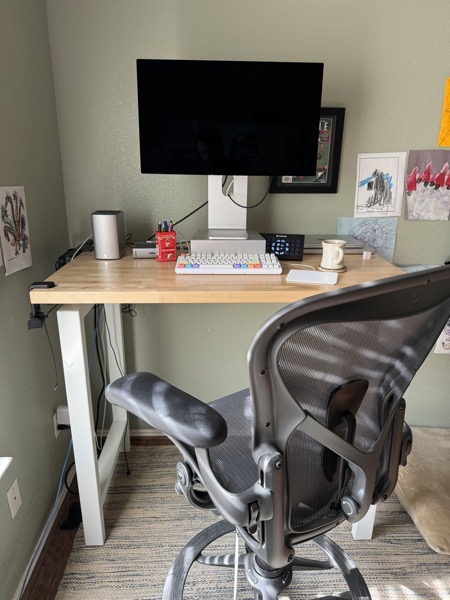
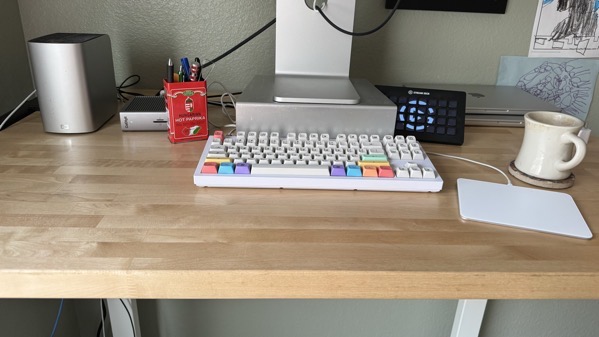
I am fortunate enough to work remote and thus have been able to tailor my workspace to my taste and comfort. I may not need a Studio Display, an Aeron stool, or a standing desk, but they all make doing my job easier by making it more enjoyable, and it drives me a little nuts whenever I go into the office to see most of my colleagues settle for the tools that were chosen for them because that’s whatever the company could buy in bulk at a good price. That’s not to say I expect my employer to provide everyone with $1500 displays, rather that I am disappointed that none of my colleagues eschew the $100 display provided in favor of something that would make their job easier. Sure, most of my colleagues probably don’t care about their display, but I bet at least some do and accept what they know is a crappy display simply because “it’s fine.”

There are very valid reasons for sticking with the status quo, namely “because I can’t afford anything better” or “I truly don’t value this enough to pay a premium for it”, but there are also plenty of excuses that don’t really hold up to scrutiny. Here are a few examples:

  • “It’s fine because only suckers buy their own equipment”, except you get to keep your equipment.
  • “It’s fine because I am tough enough to not need nice things”, but that doesn’t stop you from buying nice things outside of your job.
  • “I don’t want to be the guy with the weird keyboard”, which just makes you the even weirder guy who secretly wants a better keyboard.
  • “It’s fine because my job is not my life”, outside of that part of your life where you spend most of your waking hours doing your job.

The silliness of that last excuse ties into a precept that has been invaluable to my own spending habits. Where reasonable, allow yourself to spend more in the areas you spend lots of time. For example, get the best set of knives you can reasonably afford if you cook regularly, and just get a discount set if you don’t1. “It’s fine” really usually is fine for the things that only get occasional use. Just don’t automatically settle for “it’s fine” for the stuff you are going to use all the time. Once you concede it’s reasonable to invest a little more in the kitchen where you spend a handful of hours each week, then investing a even more in the office where you spend 40+ hours each week becomes a no-brainer… even if that means buying a better keyboard.


  1. Also avoid buying expensive stuff you know you’ll rarely use. This is why I don’t own an Apple Vision Pro. As much as I might want one, I know it’ll mostly sit in a drawer.